TImageEnView offers several interactive tools enabling you to quickly deliver advanced image editing functionality to your users.
Image Editing Methods
◼Analysis Methods◼Color Adjustment Methods
◼Color Depth Methods
◼Detection Methods
◼Effects Methods
◼Filter Methods
◼Geometric Methods
◼Painting and Alpha Methods
◼Smoothing Methods
◼Other Methods
◼Selection Methods
◼Interactive Tools
BrushTool
// Enable painting with a circular spray can brushImageEnView1.BrushTool.BrushFill := iebfSpray;
ImageEnView1.BrushTool.BrushSize := 50;
ImageEnView1.BrushTool.BrushColor := clRed;
ImageEnView1.MouseInteractGeneral := [ miBrushTool ];
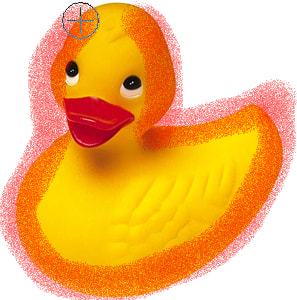
// Partially erase the image
ImageEnView1.BrushTool.BrushFill := iebfEraser;
ImageEnView1.BrushTool.BrushSize := 50;
ImageEnView1.BrushTool.EraserOpacity := 0.5;
ImageEnView1.MouseInteractGeneral := [ miBrushTool ];
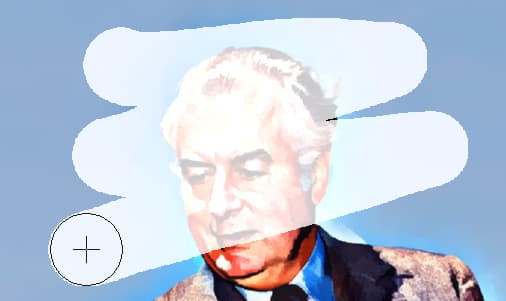
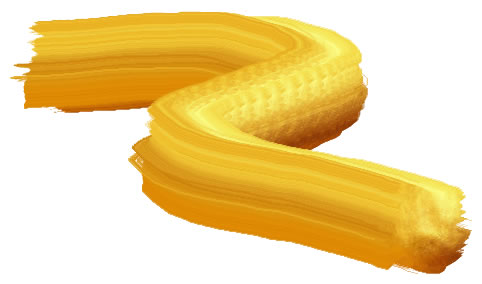
// Enable painting with a custom brush
ImageEnView1.BrushTool.BrushImage.Read( 'Golden-Brush.png' );
ImageEnView1.BrushTool.BrushFill := iebfImage;
ImageEnView1.MouseInteractGeneral := [ miBrushTool ];
CloneTool
// Enable Clone modeImageEnView1.MouseInteractGeneral := [miCloneTool];

CropTool
// Enable rectangular cropping tool (with optional rotation)ImageEnView1.MouseInteractGeneral := [miCropTool];
ImageEnView1.CropTool.Mode := iectmRectangle;

// Enable Perspective fixing tool
ImageEnView1.MouseInteractGeneral := [miCropTool];
ImageEnView1.CropTool.Mode := iectmPerspective;

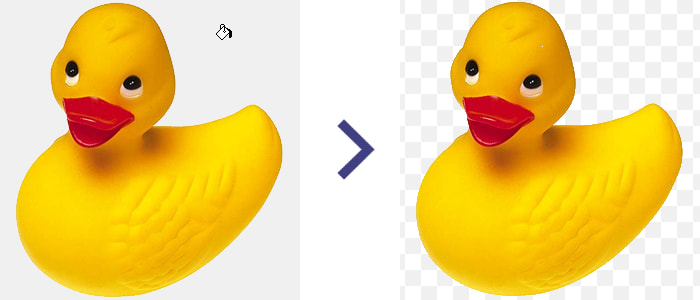
FillTool
// Fill clicked areas with blueImageEnView1.FillTool.ColorFillValue := $00FF8000;
ImageEnView1.FillTool.Tolerance := 128;
ImageEnView1.MouseInteractGeneral := [ miColorFill ];
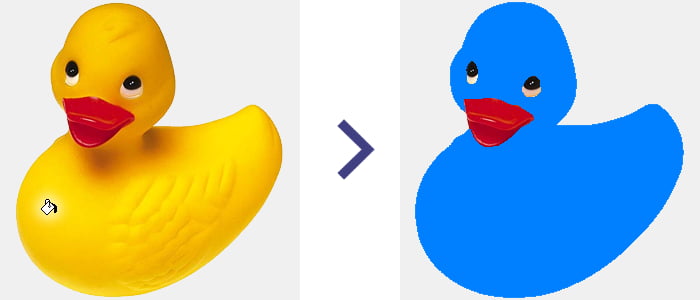
// Fill clicked areas with transparency
ImageEnView1.FillTool.AlphaFillValue := 0;
ImageEnView1.FillTool.Tolerance := 128;
ImageEnView1.MouseInteractGeneral := [miAlphaFill];
RetouchTool
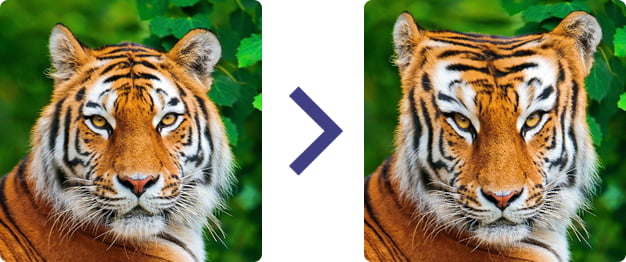
// Smudge the imageImageEnView1.RetouchTool.RetouchMode := iermSmudge;
ImageEnView1.RetouchTool.SmudgePressure := 15;
ImageEnView1.RetouchTool.Feathering := 3;
ImageEnView1.MouseInteractGeneral := [ miRetouchTool ];

// Apply motion blur to image
ImageEnView1.RetouchTool.RetouchMode := iermMotionBlur ;
ImageEnView1.RetouchTool.MotionBlurSigma := 8;
ImageEnView1.RetouchTool.MotionBlurAngle := 180;
ImageEnView1.RetouchTool.MotionBlurRadius := 10;
ImageEnView1.MouseInteractGeneral := [ miRetouchTool ];

// Use IEVision's Inpainting to remove blemishes in the image
ImageEnView1.RetouchTool.RetouchMode := iermIEVisionInpaint;
ImageEnView1.RetouchTool.InpaintRangeSize := 6;
ImageEnView1.MouseInteractGeneral := [ miRetouchTool ];

// Pixelate the brushed area (e.g. to hide sensitive detail)
ImageEnView1.RetouchTool.RetouchMode := iermPixelize;
ImageEnView1.RetouchTool.PixelizeBlockSize := 5;
ImageEnView1.MouseInteractGeneral := [ miRetouchTool ];

// Warp the image
ImageEnView1.RetouchTool.RetouchMode := iermWarp;
ImageEnView1.RetouchTool.BrushSize := 60;
ImageEnView1.MouseInteractGeneral := [ miRetouchTool ];
RotateTool
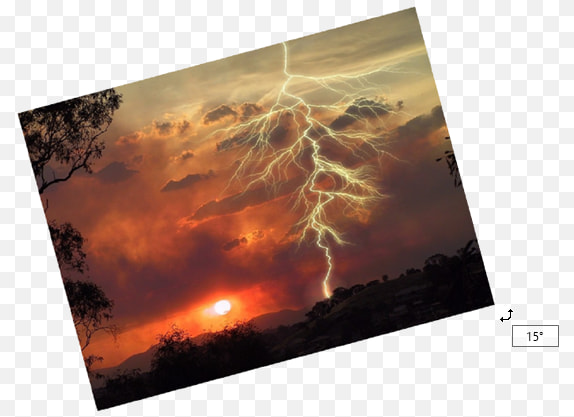
// Allow user to freely rotate the imageImageEnView1.MouseInteractGeneral := [miRotateTool];
TransformTool
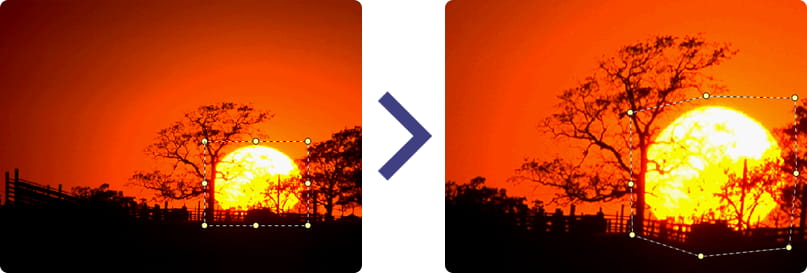
// Enable the Warp Transformation toolImageEnView1.MouseInteractGeneral := [miTransformTool];
See Also
◼Analysis Methods◼Color Adjustment Methods
◼Color Depth Methods
◼Detection Methods
◼Effects Methods
◼Filter Methods
◼Geometric Methods
◼Painting and Alpha Methods
◼Smoothing Methods
◼Other Methods
◼Selection Methods
◼Interactive Tools