TIEBrushToolInteraction.BrushFill
Declaration
property BrushFill: TIEBrushFill;Description
Specifies the type of fill for the paint brush.| Type | Description |
|---|---|
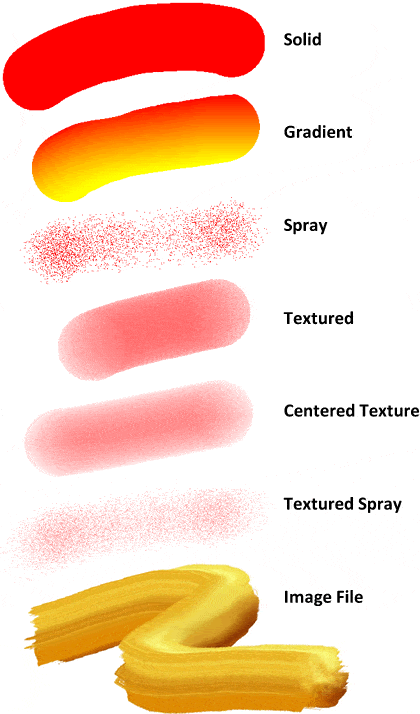
| iebfSolid | A standard fill of a solid color |
| iebfGradient | A fill with a vertical gradient from BrushColor to BrushColor2 |
| iebfSpray | A "Spray Can" fill, i.e. random points of a specified density |
| iebfTexturedSpray | A "Spray Can" fill, i.e. random points of a specified density and transparency to provide texture (between AlphaTextureMin and AlphaTextureMax) |
| iebfTextured | A solid fill with random transparency to provide texture to the brush. Pixel transparency will be in the range AlphaTextureMin to AlphaTextureMax |
| iebfCenteredTexture | Same as iebfTextured, but the alpha is stronger towards the center of the brush. Pixel transparency will be in the range AlphaTextureMin to AlphaTextureMax |
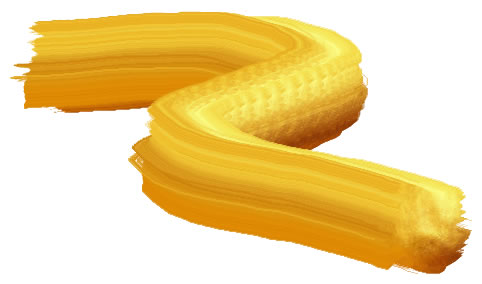
| iebfImage | An image is used as a brush. Note: You must assign an image to BrushImage |
| iebfEraser | A special brush that applies alpha to the image, e.g. if EraserOpacity is 1.0, dragging the mouse will completely erase the content. It also will optionally remove color from the image) (See also: RightButtonEraser) |
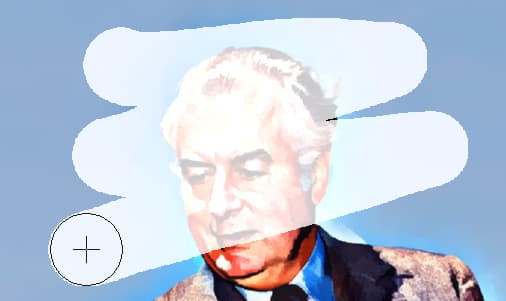
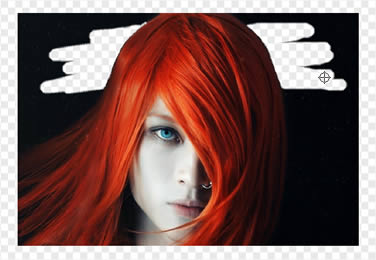
| iebfSmartEraser | A special brush for background removal that applies alpha to the image and attempts to avoid erasing the subject (i.e. erases content of similar color to where first clicked). Options are specified by ChromaKeyOptions |
| iebfLine | Draws a line of the specified brush color and size |
| iebfRect | Draws an unfilled rectangle of the specified brush color and size |
| iebfFilledRect | Draws a solid rectangle of the specified brush color and size |
| iebfEllipse | Draws an unfilled ellipse of the specified brush color and size |
| iebfFilledEllipse | Draws a solid ellipse of the specified brush color and size |
Default: iebfSolid
Examples
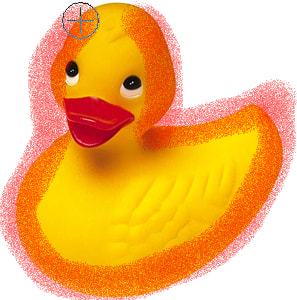
// Enable painting with a circular spray can brushImageEnView1.BrushTool.BrushShape := iecsCircle;
ImageEnView1.BrushTool.BrushFill := iebfSpray;
ImageEnView1.BrushTool.BrushSize := 40;
ImageEnView1.BrushTool.BrushColor := clRed;
ImageEnView1.MouseInteractGeneral := [ miBrushTool ];
// Enable painting with a red/yellow gradient
ImageEnView1.BrushTool.BrushShape := iecsRectangle;
ImageEnView1.BrushTool.BrushFill := iebfGradient;
ImageEnView1.BrushTool.BrushSize := 50;
ImageEnView1.BrushTool.BrushColor := clRed;
ImageEnView1.BrushTool.BrushColor2 := clYellow;
ImageEnView1.MouseInteractGeneral := [ miBrushTool ];
// Set cursor as a square eraser
ImageEnView1.BrushTool.BrushFill := iebfEraser;
ImageEnView1.BrushTool.EraserOpacity := 1.0;
ImageEnView1.BrushTool.BrushShape := iecsRectangle;
ImageEnView1.MouseInteractGeneral := [ miBrushTool ];
// Partially erase the image
ImageEnView1.BrushTool.BrushFill := iebfEraser;
ImageEnView1.BrushTool.BrushSize := 50;
ImageEnView1.BrushTool.EraserOpacity := 0.5;
ImageEnView1.BrushTool.BrushShape := iecsCircle;
ImageEnView1.MouseInteractGeneral := [ miBrushTool ];
// Use Smart Eraser Brush tool
ImageEnView1.ChromaKeyOptions.Tolerance := 0.15;
ImageEnView1.BrushTool.BrushFill := iebfSmartEraser;
ImageEnView1.MouseInteractGeneral := [ miBrushTool ];
// Enable painting with a custom brush
ImageEnView1.BrushTool.BrushImage.Read( 'Golden-Brush.png' );
ImageEnView1.BrushTool.BrushFill := iebfImage;
ImageEnView1.BrushTool.BrushShape := iecsRectangle;
ImageEnView1.MouseInteractGeneral := [ miBrushTool ];